
Tutorials / Build a REST API with C# and .NET · Lesson 38 of 38
Frontend
On this page
The Login Screen
Since protect endpoints and roles, the API refuses every request for data that has no token, and the pages have never logged in. The Books page shows one word, Unauthorized, above an empty table. This lesson teaches the pages to log in.
Our goal: a login page that gets a token from the API, Books and report pages that send it with every request, and a menu that shows the report link only to managers.
Here is the route:
- Write the login page.
- Decide where the browser keeps the token. There are four places, and the choice matters.
- Write one small shared script that sends the token with every request, and goes to the login page when the API answers
401. - Change the Books page: use that script, show who is logged in, add a Log out button, and show the report link to managers only.
- Change the report page to use the script.
- Try it as bob and as alice.
As before, the pages are ugly on purpose: no styling, only the HTML and the script the job needs. Also left out: staying logged in after the browser closes, tokens that renew themselves, and logging in with a cookie that scripts cannot read (named under step 2, not built).
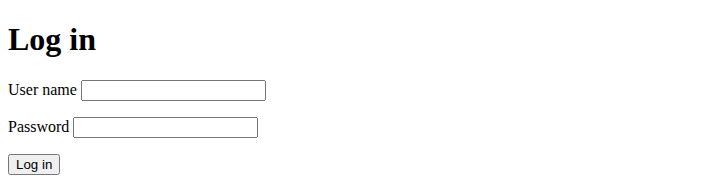
This is the login page we build first:
Where we are
This is the solution from the end of protect endpoints and roles. Two files are new and two change, all in wwwroot:
BookShop/
  src/
    BookShop.Api/
      wwwroot/
        index.html                     <- changes
        report.html                    <- changes
        login.html                     <- NEW
        auth.js                        <- NEW
Only the files that change are listed. Run every command from the solution folder, BookShop/. Keep the app running (dotnet run --project src/BookShop.Api) and refresh the browser after each edit. The table should hold the five sample books from reading books. The Books page is long, so this lesson shows only the new pieces of it, each marked // new or <!-- new -->, and the whole page once at the end.
Here is how the pages fit together once we are done:
The login page
Create src/BookShop.Api/wwwroot/login.html. The whole file is:
<!DOCTYPE html>
<html>
<head>
  <meta charset="utf-8">
  <title>Log in</title>
</head>
<body>
  <h1>Log in</h1>

  <p id="message"></p>

  <form id="login-form">
    <p><label>User name <input name="userName"></label></p>
    <p><label>Password <input name="password" type="password"></label></p>
    <p><button type="submit">Log in</button></p>
  </form>

  <script>
    const form = document.getElementById('login-form');

    form.addEventListener('submit', async (event) => {
      event.preventDefault();

      const response = await fetch('/auth/login', {
        method: 'POST',
        headers: { 'Content-Type': 'application/json' },
        body: JSON.stringify({
          userName: form.elements.userName.value,
          password: form.elements.password.value
        })
      });

      if (!response.ok) {
        const problem = await response.json();
        document.getElementById('message').textContent = problem.title;
        return;
      }

      const answer = await response.json();
      sessionStorage.setItem('token', answer.token);
      sessionStorage.setItem('role', answer.role);
      sessionStorage.setItem('userName', form.elements.userName.value);
      location.href = '/';
    });
  </script>
</body>
</html>
Most of it is the Books form from the Books screen, smaller:
type="password"makes the browser show dots instead of the letters. It changes only what is shown on screen: the password still travels as plain text in the request body. (On a live site, HTTPS encrypts the whole request on its way.)- The request is a
POSTto/auth/loginwith the JSON body the login endpoint expects,{"userName": ..., "password": ...}. - On failure the page shows the
titleof the Problem Details:Wrong user name or password.for a401, or the validation title for an empty form. - On success the page keeps three things in
sessionStorage(the next section explains it): the token, the role and the user name.setItem(name, value)stores a value under a name. location.href = '/'sends the browser to another address, here the Books page. It is the same as clicking a link.
This page uses plain fetch, and not the helper we write below. The login request carries no token, and a 401 here means "wrong password", not "go and log in".
Where to keep the token
The login page has the token, and then the browser leaves the page. The token has to survive that, so the Books page can find it. The browser has four places to keep it:
| Place | Survives a click to another page | Survives closing the tab | A script on the page can read it |
|---|---|---|---|
| A variable in the script | no | no | yes |
sessionStorage |
yes | no | yes |
localStorage |
yes | yes, until removed | yes |
A cookie marked HttpOnly |
yes | depends on the cookie | no |
A variable is out for us. As the report screen showed, a link loads another page, and its script starts from nothing. Our app is three separate pages, so the token would be lost at every click. (Apps built as one page that never reloads can keep it in a variable.)
sessionStorage and localStorage are two small stores the browser keeps for each site. They work the same way (setItem, getItem), and each site sees only its own. The difference is how long they keep things: sessionStorage forgets when the tab is closed, localStorage keeps everything until it is removed. On a shared computer at the shop counter, localStorage means the next person who opens the site is still logged in as the last one.
Both have the same weak spot: any script running on the page can read them. In the first web page, a book title with HTML in it showed how a stranger's script could end up on a page, and textContent kept it out. If such a script ever did get in, it could read the token and send it away, and a token works for whoever holds it.
A cookie marked HttpOnly fixes that: the browser keeps it and sends it with every request, and no script can read it at all. That is the safest place against a stolen token. But then the API must read the token from a cookie instead of the Authorization header, and cookies that the browser sends by itself need their own protection against other sites sending requests in your name. That is a different setup, and we leave it out.
We use sessionStorage: it survives the clicks between our pages, and it is gone when the tab is closed. Like localStorage, a script on the page could read it, so it relies on the page never letting a stranger's script in, which is why every page in this course writes data with textContent. This is a choice, and teams argue about it; the HttpOnly cookie is the stronger one when you can set it up.
One shared script for the token
Both the Books page and the report page need the same thing: add the token to each request, and go to the login page if the API answers 401. Until now, each page had all its script inside it. Two pages with the same job is the moment to move that job into one file, so a change is made in one place.
Create src/BookShop.Api/wwwroot/auth.js. The whole file is:
async function apiFetch(url, options) {
  options = options ?? {};
  options.headers = options.headers ?? {};

  const token = sessionStorage.getItem('token');
  if (token) {
    options.headers['Authorization'] = 'Bearer ' + token;
  }

  const response = await fetch(url, options);
  if (response.status === 401) {
    location.href = '/login.html';
  }
  return response;
}

function logOut() {
  sessionStorage.clear();
  location.href = '/login.html';
}
apiFetch is fetch with the token added. The pages call it exactly as they called fetch, with the same address and the same options:
- The first two lines make sure there is an options object and a
headersobject to add to.a ?? bmeans "a, orbifais missing", the same??as inproblem.errors ?? {}. AGETpasses no options at all; aPOSTpasses its own headers, such asContent-Type, and they are kept. - The token is read back with
getItem, and added as theAuthorizationheader in the form the API expects:Bearer, a space, the token. If there is no token (nobody has logged in in this tab), no header is added, and the API answers401. - On a
401the browser goes to the login page. One rule covers both cases: never logged in, and a token that ran out after its hour. A403is not sent to the login page, because logging in again would not help (bob would still be bob). - The response goes back to the caller, so the page goes on as before:
response.ok,response.json(), and so on.
logOut empties sessionStorage (clear() removes everything this site stored in this tab) and goes to the login page. Be honest about what it does: the browser forgets the token, and the token itself is still valid until it expires, as what a JWT is explained. For a token that only ever lived in this tab, that is fine.
A page loads a script file with <script src="auth.js"></script>. The browser fetches the file, runs it, and then apiFetch and logOut are there for the page's own script below it.
The Books page
Open src/BookShop.Api/wwwroot/index.html. Four changes.
1. A line under the heading: who is logged in, the report link, and a Log out button. It replaces the plain report link from the report screen lesson:
  <h1>Books</h1>

  <p>                                                                    <!-- new -->
    Logged in as <span id="user-name"></span>.                           <!-- new -->
    <a href="report.html" id="report-link" hidden>Stock report</a>        <!-- new -->
    <button type="button" id="log-out">Log out</button>                  <!-- new -->
  </p>                                                                   <!-- new -->

  <p id="message"></p>
The link starts with hidden, an attribute that tells the browser not to show the element. The script shows it to managers. <span> is an element with no look of its own, a place to put the user name.
2. Load the shared script, in a line of its own just before the page's script:
  <script src="auth.js"></script>                                        <!-- new -->
  <script>
    const form = document.getElementById('book-form');
3. Every fetch becomes apiFetch. There are three: in loadBooks, in deleteBook, and in the form's submit handler. Change the name only, and keep everything inside the brackets:
const response = await apiFetch('/books'); // new
const response = await apiFetch('/books/' + book.id, { method: 'DELETE' }); // new
const response = await apiFetch(id ? '/books/' + id : '/books', { // new
4. Fill in the line from step 1, at the end of the script, just before loadBooks();:
    cancelButton.addEventListener('click', stopEdit);

    document.getElementById('user-name').textContent = sessionStorage.getItem('userName');   // new
    if (sessionStorage.getItem('role') === 'Manager') {                                       // new
      document.getElementById('report-link').hidden = false;                                  // new
    }                                                                                         // new
    document.getElementById('log-out').addEventListener('click', logOut);                     // new

    loadBooks();
The user name goes in with textContent, like every other piece of data. The role decides the menu: a manager gets the report link, anyone else does not. The Log out button calls logOut from auth.js.
⚠️ Hiding the link is a convenience, not a lock. bob can still type
/report.htmlin the address bar, or call/reports/stockwith curl. What keeps the report from him is the403from the API, from the last lesson. Never let a page's menu be the only thing between a user and data: anyone can change what a page shows, in the developer tools, in a minute.
The whole page is at the end of the lesson, to compare.
The report page
The report page needs the shared script and apiFetch, nothing else. Open src/BookShop.Api/wwwroot/report.html. The whole file is:
<!DOCTYPE html>
<html>
<head>
  <meta charset="utf-8">
  <title>Stock report</title>
</head>
<body>
  <h1>Stock report</h1>

  <p><a href="/">Books</a></p>

  <p id="message"></p>

  <table>
    <thead>
      <tr>
        <th>Category</th>
        <th>Titles</th>
        <th>Copies</th>
        <th>Stock value</th>
      </tr>
    </thead>
    <tbody id="report-rows"></tbody>
  </table>

  <script src="auth.js"></script>                                        <!-- new -->
  <script>
    async function loadReport() {
      const response = await apiFetch('/reports/stock');                 // new
      if (!response.ok) {
        document.getElementById('message').textContent =
          'Could not load the report. The API answered ' + response.status + '.';
        return;
      }

      const lines = await response.json();
      const rows = document.getElementById('report-rows');

      for (const line of lines) {
        const row = rows.insertRow();
        row.insertCell().textContent = line.category;
        row.insertCell().textContent = line.titles;
        row.insertCell().textContent = line.copies;
        row.insertCell().textContent = line.stockValue.toFixed(2);
      }
    }

    loadReport();
  </script>
</body>
</html>
The message for a failed request was already there. It now gets its first real use: a 403.
Try it
Open the developer tools (F12) on the Network tab before each case, so you can watch the requests. Each case starts where the one before ended.
Case A: open the Books page without logging in
Open http://localhost:5101/ in a new tab. The address bar ends on /login.html. The Network tab shows why, in order:
200  /
200  /auth.js
401  /books
200  /login.html
The page loaded, asked for the books with no token, got a 401, and apiFetch sent the browser to the login page. (You may also see a 404 for /favicon.ico, the little icon browsers ask every site for; ignore it.)
Case B: bob, with a wrong password
Type bob and guess, and click Log in. The request body is:
{"userName":"bob","password":"guess"}
The API answers 401, and the page shows the title: Wrong user name or password. The page stays where it is.
Case C: bob, with his password
Now bob and bob-pass-1:
{"userName":"bob","password":"bob-pass-1"}
The login answers 200, the browser goes to the Books page, and GET /books answers 200 with the five books. Click that request in the Network tab and look at its request headers: there is the Authorization: Bearer eyJ... line that apiFetch added. The top of the page shows bob, and no report link:

The token is in sessionStorage now. In the Console, sessionStorage.getItem('role') answers 'Staff'.
Case D: bob types the report address
bob knows the address. He types http://localhost:5101/report.html. The page loads, because pages are open to anyone, and then:
Could not load the report. The API answered 403.
The headings of the table are there, and no numbers. The request for /reports/stock carried bob's good token, and the API said 403. apiFetch left the page alone, because a 403 is not a reason to log in again.
Case E: log out, and log in as alice
Go back to the Books page and click Log out. The browser is on the login page, and sessionStorage.length in the Console answers 0: the token is gone. Log in as alice with alice-pass-1. The top of the Books page now has the link:

Click Stock report. The request carries alice's token, the role is Manager, and the report shows the same numbers as in the report screen lesson:
| Category | Titles | Copies | Stock value |
|---|---|---|---|
| Cooking | 2 | 6 | 181.00 |
| Programming | 3 | 22 | 852.30 |
Adding, editing and deleting books work as before, for both users: apiFetch keeps the Content-Type header the form sends and adds the token next to it. We added a book as bob to check, and removed it again.
The whole Books page
Compare with your file:
<!DOCTYPE html>
<html>
<head>
  <meta charset="utf-8">
  <title>Books</title>
</head>
<body>
  <h1>Books</h1>

  <p>
    Logged in as <span id="user-name"></span>.
    <a href="report.html" id="report-link" hidden>Stock report</a>
    <button type="button" id="log-out">Log out</button>
  </p>

  <p id="message"></p>
  <ul id="problems"></ul>

  <form id="book-form" novalidate>
    <input type="hidden" name="bookId">
    <p><label>Title <input name="title"></label></p>
    <p><label>Author <input name="author"></label></p>
    <p><label>Price <input name="price" type="number" step="0.01"></label></p>
    <p><label>Stock <input name="stock" type="number"></label></p>
    <p><label>Category <input name="category"></label></p>
    <p>
      <button type="submit">Save</button>
      <button type="button" id="cancel-edit" hidden>Cancel</button>
    </p>
  </form>

  <table>
    <thead>
      <tr>
        <th>Title</th>
        <th>Author</th>
        <th>Price</th>
        <th>Stock</th>
        <th>Category</th>
        <th></th>
      </tr>
    </thead>
    <tbody id="book-rows"></tbody>
  </table>

  <script src="auth.js"></script>
  <script>
    const form = document.getElementById('book-form');
    const cancelButton = document.getElementById('cancel-edit');

    async function loadBooks() {
      const response = await apiFetch('/books');
      if (!response.ok) {
        await showProblem(response);
        return;
      }

      const books = await response.json();
      const rows = document.getElementById('book-rows');
      rows.replaceChildren();

      for (const book of books) {
        const row = rows.insertRow();
        row.insertCell().textContent = book.title;
        row.insertCell().textContent = book.author;
        row.insertCell().textContent = book.price.toFixed(2);
        row.insertCell().textContent = book.stock;
        row.insertCell().textContent = book.category;

        const editButton = document.createElement('button');
        editButton.textContent = 'Edit';
        editButton.addEventListener('click', () => startEdit(book));

        const deleteButton = document.createElement('button');
        deleteButton.textContent = 'Delete';
        deleteButton.addEventListener('click', () => deleteBook(book));

        row.insertCell().append(editButton, ' ', deleteButton);
      }
    }

    function readBook() {
      return {
        title: form.elements.title.value,
        author: form.elements.author.value,
        price: Number(form.elements.price.value),
        stock: Number(form.elements.stock.value),
        category: form.elements.category.value
      };
    }

    function startEdit(book) {
      clearProblems();
      form.elements.bookId.value = book.id;
      form.elements.title.value = book.title;
      form.elements.author.value = book.author;
      form.elements.price.value = book.price;
      form.elements.stock.value = book.stock;
      form.elements.category.value = book.category;
      cancelButton.hidden = false;
    }

    function stopEdit() {
      form.reset();
      form.elements.bookId.value = '';
      cancelButton.hidden = true;
    }

    async function deleteBook(book) {
      if (!confirm('Delete "' + book.title + '"?')) {
        return;
      }

      clearProblems();
      const response = await apiFetch('/books/' + book.id, { method: 'DELETE' });
      if (response.ok) {
        await loadBooks();
      } else {
        await showProblem(response);
      }
    }

    function clearProblems() {
      document.getElementById('message').textContent = '';
      document.getElementById('problems').replaceChildren();
    }

    async function showProblem(response) {
      const problem = await response.json();
      document.getElementById('message').textContent = problem.title;

      const list = document.getElementById('problems');
      list.replaceChildren();
      for (const messages of Object.values(problem.errors ?? {})) {
        for (const text of messages) {
          const item = document.createElement('li');
          item.textContent = text;
          list.append(item);
        }
      }
    }

    form.addEventListener('submit', async (event) => {
      event.preventDefault();
      clearProblems();

      const id = form.elements.bookId.value;
      const response = await apiFetch(id ? '/books/' + id : '/books', {
        method: id ? 'PUT' : 'POST',
        headers: { 'Content-Type': 'application/json' },
        body: JSON.stringify(readBook())
      });

      if (response.ok) {
        stopEdit();
        await loadBooks();
      } else {
        await showProblem(response);
      }
    });

    cancelButton.addEventListener('click', stopEdit);

    document.getElementById('user-name').textContent = sessionStorage.getItem('userName');
    if (sessionStorage.getItem('role') === 'Manager') {
      document.getElementById('report-link').hidden = false;
    }
    document.getElementById('log-out').addEventListener('click', logOut);

    loadBooks();
  </script>
</body>
</html>
Where we ended
Compare with your solution:
BookShop/
  src/
    BookShop.Api/
      wwwroot/
        login.html                     logs in, keeps the token, role and name in sessionStorage
        auth.js                        apiFetch (adds the token, a 401 goes to login) and logOut
        index.html                     the Books screen, through apiFetch, with a menu for the role
        report.html                    the stock report, through apiFetch
The system the course set out to build is complete: an API with a books screen and a report screen, logging in, and two roles. Staff see the books. Managers see the books and the report. The API decides, and the pages follow.
Recap
- The login page sends the user name and password to
POST /auth/login, and keeps the token, the role and the name insessionStorage. - A token can live in a variable (lost at each page change),
sessionStorage(until the tab closes),localStorage(until removed) or anHttpOnlycookie (no script can read it). We chosesessionStorage; a script on the page could read it, so the pages never let one in. auth.jsis a script shared by two pages.apiFetchaddsAuthorization: Bearerto each request and goes to the login page on a401. A403stays on the page.- Log out makes the browser forget the token. The token itself stays valid until it expires.
- The menu shows the report link only to managers, with
hidden. That is a convenience: the API's403is what protects the report.
Questions to think about
Each question has its answer folded away underneath. Guess first, then open it to check.
- Why can the token not be kept in a variable in our pages?
Show answer
Every link loads a new page, and the new page's script starts from nothing. The token would be lost at the first click.
- bob does not see the Stock report link. Is that what keeps the report from him?
Show answer
No. Hiding the link only tidies the menu. The API refuses his token on /reports/stock with a 403, whatever the page shows.
- Why does
apiFetchgo to the login page on a401, but not on a403?
Show answer
A 401 means the API does not know who you are, which logging in fixes. A 403 means it knows, and the answer would be the same after logging in again.
- What is the risk of keeping a token where a script can read it?
Show answer
If a stranger's script ever gets into the page, it can read the token and use it, because a token works for whoever holds it. Writing data with textContent is what keeps such scripts out.
Next lesson: logging, the program's own diary of what happened, now that there are logins, refusals and reports to keep track of.