
Tutorials / Build a REST API with C# and .NET · Lesson 32 of 44
Concept
On this page
Making a Page Change
A web page can change in front of the visitor: a row appears, a message shows up, a number goes up. That is done with a small program inside the page, written in JavaScript. The bookshop's web pages in the next lessons are built on it, so this lesson is a short primer.
Our goal: a page with a text box and an Add button. Each time you type a title and click Add, the title appears in a table.
Here is the route:
- See why a page needs a script at all.
- Write the page itself, in HTML.
- Meet the browser's Console, and write a first script.
- Find a part of the page from the script, and change it.
- Make the change happen when the button is clicked.
- See why the script goes at the bottom of the page.
This lesson leaves out styling and design (the page is plain on purpose), talking to the API, and almost all of the JavaScript language: only what this page uses is here. Talking to the API is the first web page.
You can type the page along with the lesson: it is one small file, and nothing needs to be installed or run except a browser. Reading is enough too.
A page that cannot change
Think of the page as a printed poster on the wall. Once it is printed, it stays as it is. To get a different poster you have to go to the print shop, which is the server, and ask for a new one.
A browser works the same way. It asks the server for a page, the server sends the page, and the browser draws it. Without a script, nothing on the page changes until the browser asks the server again.
A script is a short program that the page carries with it. The browser runs it on the visitor's own computer, and it can change the page the visitor is looking at. This is the whole idea of the lesson. JavaScript is the language browsers understand for this. It is not Java, despite the name.
This picture is simplified: a real page still asks the server for things, and a later lesson does exactly that. For now, the script works alone.
The page: HTML
A script needs something to change, so we start with the page itself. A page is written in HTML, a text file where each part of the page is marked with tags.
Create a new folder anywhere on your computer (the desktop is fine; it has nothing to do with the bookshop solution). In it, create a text file called reading-list.html, with a plain text editor such as Visual Studio Code or Notepad. In Notepad, pick "All files" when you save, so the name does not end in .html.txt. Put this in it:
<!DOCTYPE html>
<html>
<head>
  <meta charset="utf-8">
  <title>Reading list</title>
</head>
<body>
  <h1>Reading list</h1>

  <input id="title" type="text">
  <button id="add">Add</button>

  <table>
    <thead>
      <tr>
        <th>Title</th>
      </tr>
    </thead>
    <tbody id="list-rows"></tbody>
  </table>
</body>
</html>
Double-click the file, and your browser opens it. You see a heading, a text box with an Add button, and a table with a header and no rows. Clicking Add does nothing yet. The page is a file on your own disk, so no server is involved, and nothing needs to be installed.
An element is a start tag, such as <h1>, the content, and an end tag, such as </h1>. Elements sit inside other elements, like boxes in boxes.
What each part does:
<head>holds facts about the page: its text encoding (utf-8, so that accented letters work) and its<title>, the text on the browser tab.<body>holds what the visitor sees.<h1>is the biggest heading.<input type="text">is a text box and<button>is a button.<table>is a table.<thead>is its header,<tr>a row and<th>a header cell.<tbody>is where the rows go, and we leave it empty, because the script will add them.id="..."is an extra setting written inside a start tag, called an attribute. This one gives an element a name, such asid="add"for the button. Names must be different within one page. This is how the script will find things, so it is the most important attribute for this lesson.
The Console, and a first script
A script goes in a <script> element. Before we write anything useful, we need a way to see what a script does, because most of it happens inside the page and shows nothing. Every browser has developer tools for this. In Chrome, Edge and Firefox, press F12 (or right-click the page and choose Inspect), and a panel opens with tabs. We use one of them in this lesson: the Console. It shows messages from the page's script and, when something goes wrong, the error, in red.
This is a drawing, not real output. The other tabs exist too, and we do not need them yet. The Network tab comes in the next lesson, where the page first asks the API for something.
Now the first script. In reading-list.html, add a <script> element at the very end of the body, just before </body>:
  <script>
    console.log('The page is ready');
  </script>
</body>
console.log(...) writes a message to the Console. It is the way a script says something to the developer, and you will use it often. Save the file, refresh the browser (F5), and open the Console. It shows:
The page is ready
The script ran when the page loaded. Anything between <script> and </script> is JavaScript, and the browser runs it from top to bottom.
Finding things on the page
To change the page, the script must first find the part it wants to change. The browser keeps a live model of the page, a tree of the elements that the page file described. It is called the DOM (Document Object Model), and the script reaches it through the name document.
document.getElementById('list-rows') finds the element whose id is list-rows. This is why we gave elements names. Once the script has the element, it can change it. To prove it, replace the script with this one, which adds one row as soon as the page loads:
  <script>
    const rows = document.getElementById('list-rows');
    const row = rows.insertRow();
    row.insertCell().textContent = 'Clean Code';
  </script>
Refresh. The table now has a row:
Title
Clean Code
The three lines, in plain words:
const rows = document.getElementById('list-rows');finds the table body and keeps it in a name,rows.constmakes a name for a value, likevarin C#. The name cannot be pointed at something else later.const row = rows.insertRow();adds an empty row to it, and keeps it asrow.row.insertCell().textContent = 'Clean Code';adds a cell to the row and sets its text.textContentis the text of an element. It always treats the value as plain text, never as HTML. That matters, and the next lesson shows why.
You did not edit the file to get the row. The file still has an empty <tbody>. The script changed the page the visitor sees, and only that.
Reacting to a click
A row that appears on its own is not much use. We want it when the button is clicked. The browser tells a script when things happen on the page, such as a click, a key press or a finished load. These are called events. A script says "when this happens, run this function", and the browser does it each time.
Replace the script with the whole thing:
  <script>
    function addBook() {
      const input = document.getElementById('title');
      const title = input.value.trim();
      if (title === '') {
        return;
      }
      console.log('Adding: ' + title);
      const rows = document.getElementById('list-rows');
      const row = rows.insertRow();
      row.insertCell().textContent = title;
      input.value = '';
    }

    document.getElementById('add').addEventListener('click', addBook);
  </script>
Read it from the bottom, because the last line is what starts everything:
document.getElementById('add').addEventListener('click', addBook);finds the button and tells it: when aclickhappens, runaddBook. Mind the brackets, which the next paragraph explains.function addBook() { ... }is a method that is not inside a class. It is a named block of code that runs when it is called, and here the click calls it. Defining it does not run it.input.value.trim()reads what is in the text box and removes the spaces at both ends (trim, likeTrim()in C#). A text box keeps what the visitor typed invalue.textContent, from before, is for the text inside an element such as a table cell.if (title === '') { return; }stops early when nothing was typed, so a click on an empty box adds no row. Three equal signs check for equal, as==does in C#. JavaScript also has a looser two-sign form that quietly converts values, so that'5' == 5is true. The three-sign form does not, so'5' === 5is false, and that is the one to use.console.log('Adding: ' + title)writes to the Console, to see that the function ran. The+joins text, as in C#.- The next three lines are the ones from before: find the table body, add a row, set the cell's text.
input.value = ''empties the box, ready for the next title.
The brackets. Until now, a name followed by brackets meant "run it". Here the last line has addBook with no brackets, on purpose. The browser must be given the function, to call later on each click, and not the result of calling it now. Think of it as handing someone your phone number, against ringing them yourself, right now.
| Written | What happens |
|---|---|
addEventListener('click', addBook) |
the browser keeps addBook, and runs it on every click |
addEventListener('click', addBook()) |
addBook runs once, right now, while the page loads. The button gets nothing to run, so clicking it does nothing. |
Try the second form. The function does run once as the page loads, but the box is empty then, so it stops at the return and nothing seems to happen. Type a title and click Add, and no row appears. It is an easy slip, and it fails quietly, with no red error.
Now try it, one case at a time. The text box starts empty.
Case 1: a title. Type Clean Code and click Add. The table shows:
Title
Clean Code
and the Console shows:
Adding: Clean Code
The box is empty again.
Case 2: nothing typed. Click Add with the box empty, or with only spaces in it. The table does not change, and the Console shows nothing new. The function stopped at the return.
Case 3: another title. Type Refactoring and click Add. The table keeps the first row and adds a second:
Title
Clean Code
Refactoring
and the Console shows Adding: Refactoring. After a few more titles, the page looks like this:
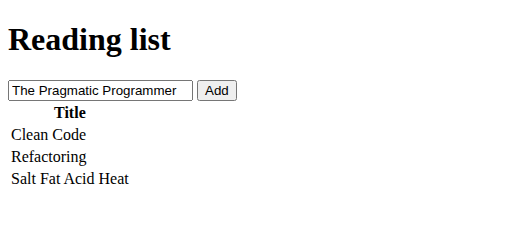
(The text box holds a fourth title that has not been added yet.)
Why the script goes at the bottom
You may have wondered why the script is the last thing in the body. Try the other way. Cut the whole <script> element and paste it in the <head>, after the <title> line:
<head>
  <meta charset="utf-8">
  <title>Reading list</title>
  <script>
    ... the same script as before ...
  </script>
</head>
Save and refresh, type a title and click Add. Nothing happens, and the Console shows an error in red:
Uncaught TypeError: Cannot read properties of null (reading 'addEventListener')
Next to it, the Console shows the file and the line, here reading-list.html:20. That is the last line of the script, the one that finds the button. The browser reads a page from the top, line by line, and runs a script the moment it reaches it. In the head, the script runs before the browser has reached the body, so the button does not exist yet. getElementById answers null, which means "nothing found", and null has nothing to listen with. (It is the same as a null reference error in C#.)
Put the script back at the bottom, and it works again. The rule is simple: a script goes after the elements it uses. Other ways exist (a defer attribute on the script tag, or waiting for an event that says the page is built), and real projects use them. For a plain page, the bottom is the simplest and needs nothing extra, so it is what this tutorial does.
Reading JavaScript if you know C#
The script looked a lot like C#, and that is not an accident. These are the differences you met, and nearly everything else is the same:
| In the script | What it is, in C# terms |
|---|---|
const title = ... |
like var, and no type is written. The value has a type, the name does not. |
function addBook() { } |
a method with no class around it and no return type |
'Adding: ' + title |
text joined with +, as in C#. Single quotes are the usual way to write text. |
title === '' |
==, in the careful form. JavaScript has a looser == that surprises people, so use three. |
input.value.trim() |
the same dot, and the same chain of calls. Names start with a small letter. |
null |
the same idea: nothing there |
Two things to watch. JavaScript cares about capital letters, so getElementById is not getelementbyid. And a typo does not stop the build, because there is no build: the error shows up in the Console, when the page runs.
Where we ended
One new file, reading-list.html, in a folder of its own, outside the bookshop. It holds the page (the heading, the box, the button and the empty table) and the script at the bottom. Here is the finished file:
<!DOCTYPE html>
<html>
<head>
  <meta charset="utf-8">
  <title>Reading list</title>
</head>
<body>
  <h1>Reading list</h1>

  <input id="title" type="text">
  <button id="add">Add</button>

  <table>
    <thead>
      <tr>
        <th>Title</th>
      </tr>
    </thead>
    <tbody id="list-rows"></tbody>
  </table>

  <script>
    function addBook() {
      const input = document.getElementById('title');
      const title = input.value.trim();
      if (title === '') {
        return;
      }
      console.log('Adding: ' + title);
      const rows = document.getElementById('list-rows');
      const row = rows.insertRow();
      row.insertCell().textContent = title;
      input.value = '';
    }

    document.getElementById('add').addEventListener('click', addBook);
  </script>
</body>
</html>
Now add a few titles and refresh the page. The table is empty again. The rows only ever existed in the browser's copy of the page. The file never changed, and nothing stored the titles anywhere. To keep data, a page has to hand it to something that stores it, and to show data kept somewhere else, it has to ask for it. For our bookshop, that something is the API.
Check your reading
You have now seen every line of the script. This is a practice round to read it back, from the easiest questions to the hardest. The answers are folded away, so guess first. Nothing here is new: each answer comes from the sections above, and every "what happens" was tried on the real page.
What is this doing?
Read each line on its own and say what it does.
document.getElementById('add').addEventListener('click', addBook);
Show answer
It finds the button with the id add and tells it: whenever you are clicked, run addBook.
const title = input.value.trim();
Show answer
It reads the text typed in the box, removes the spaces at both ends, and keeps the result under the name title.
row.insertCell().textContent = title;
Show answer
It adds a cell to the new row and puts the title in it, as plain text.
input.value = '';
Show answer
It empties the text box, ready for the next title.
Why is it written this way?
Each of these has a reason, and the lesson gave it.
- Why is there an
if (title === '') { return; }before the row is made?
Show answer
Without it, a click on an empty box would add a blank row. The return leaves the function early, so nothing is added.
- Why does the last line say
addBookand notaddBook()?
Show answer
With brackets the function would run once, right now, while the page loads. Without them, the browser is handed the function, to run on each click.
- Why is the script at the bottom of the page?
Show answer
The browser runs a script the moment it reaches it, so the script must come after the elements it looks for. At the top they do not exist yet, and getElementById finds nothing.
- Why are
inputandtitlefound insideaddBook, and not above it?
Show answer
Inside, the box is read at each click, so it holds what was typed at that moment. Above the function, the box would be read once, when the page loads and the box is empty, and every click would then stop at the return.
In what order?
- Put these five in the order they happen: (a) the visitor clicks Add, (b) the browser reads the heading, the box, the button and the table, (c) a row appears, (d) the script reaches its last line, (e)
addBookruns.
Show answer
b, d, a, e, c. The body is read first, then the script runs its last line, which only sets up the click. Nothing inside addBook runs until the visitor clicks.
What happens if...
Each change below was tried on the real page.
- You delete the
if (title === '') { return; }lines and click Add with an empty box?
Show answer
The function carries on, so an empty row is added, and the Console shows Adding: with nothing after it.
- You delete
.trim()and click Add with only spaces in the box?
Show answer
The text is no longer empty, so a row is added whose cell holds only spaces. It looks like a blank row.
- You delete
input.value = '';?
Show answer
The row is still added, but the title stays in the text box after the click.
- In the HTML you rename the button's id from
addtogo, and leave the script alone?
Show answer
getElementById('add') finds nothing and answers null, so the last line fails with the red error from the head example: Cannot read properties of null (reading 'addEventListener'). The button is never wired up, so clicking it does nothing.
Find the mistake
Each version below has one small slip. Say what you would see, and which line to look at.
- The script says
document.getElementById('Title'), with a capital T. The HTML saysid="title".
Show answer
Clicking Add gives a red error, Cannot read properties of null (reading 'value'), and no row. JavaScript cares about capital letters, so no element is found, and null has no value. The line to look at is the getElementById('Title') one.
- The script says
row.insertCell.textContent = title;, with no brackets afterinsertCell.
Show answer
The Console says Adding: Clean Code and a row is added, but the row is empty, and there is no red error. Without the brackets, insertCell was never run, so no cell was made. The page gives no hint, so you have to read the line.
- The script says
document.getElementById('list-row'), missing the finals.
Show answer
The Console says Adding: Clean Code, then a red error, Cannot read properties of null (reading 'insertRow'). No row appears, and the title stays in the box, because the function stopped before its last line. The error names insertRow, which points at the line before it.
Recap
- A page without a script cannot change until the browser asks the server again. A script is a short program the page carries, and the browser runs it on the visitor's computer.
- HTML marks the parts of a page with elements (a start tag, content, an end tag) that sit inside one another. An
idgives an element a name. - The Console in the browser's developer tools (F12) shows what a script writes with
console.log, and its errors, in red. - The browser keeps a live tree of the page, the DOM. A script reaches it through
document, finds an element withgetElementById, and changes it, for example withinsertRow,insertCellandtextContent. - An event such as a click runs a function you handed over with
addEventListener. Hand over the name, without brackets. - A script goes at the bottom of the body, after the elements it uses, because the browser runs it as soon as it reaches it.
- Changes made by a script live only in the visitor's page. Refresh, and they are gone.
Questions to think about
Each question has its answer folded away underneath. Guess first, then open it to check.
- Why can a page with a script show something new without asking the server?
Show answer
The script runs in the visitor's browser and can change the page that is already there. No new page has to be fetched.
- What is the
idof an element for?
Show answer
It is the element's name. The script uses it with getElementById to find that one element on the page.
- Why does the script go at the bottom of the page?
Show answer
The browser runs a script as soon as it reaches it. A script placed after the elements it uses finds them already built. At the top, the elements do not exist yet, and getElementById finds nothing.
- What does
addEventListener('click', addBook)do?
Show answer
It tells the browser: when this button is clicked, run the function addBook. The function runs on each click, not once when the page loads.
- The list is empty after a refresh. Where would the titles have to go to survive?
Show answer
Somewhere that stores them and outlives the page, which for the bookshop is the API and its database. The page would ask for them each time it loads. (The next lesson does exactly that.)
Next lesson: the first web page, where the table is filled with the books that the API sends, instead of titles typed in the box.